Exporting to Blender and other 3D tools
You can save what your map looks like as one 3D model file: brushes, meshes, terrain and models, with their textures inside. Handy to render a level in Blender, set up a trailer shot, or hand a blockout to an artist who builds the final meshes over it.
Warning
Only geometry and materials are exported. Entity logic, I/O wiring, triggers, scripts and gameplay
behavior are left out, and the file cannot be opened in TrenchDot as a map again. The .tdm stays the map, keep
editing that.
Steps
-
Open the export
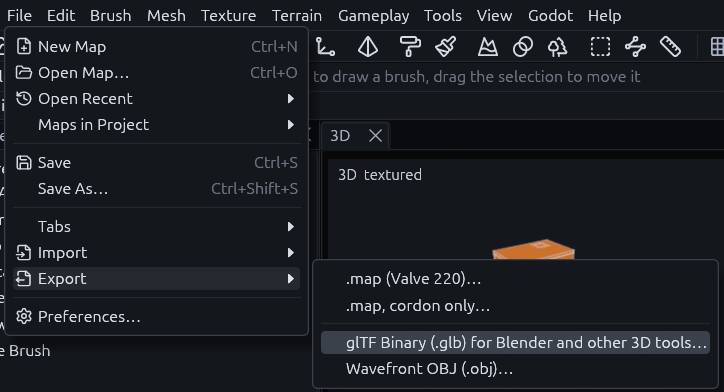
Go to File > Export > glTF Binary (.glb) for Blender and other 3D tools…, or type "glTF" in the command palette (Ctrl+Shift+P or F1).
-
Pick what goes in
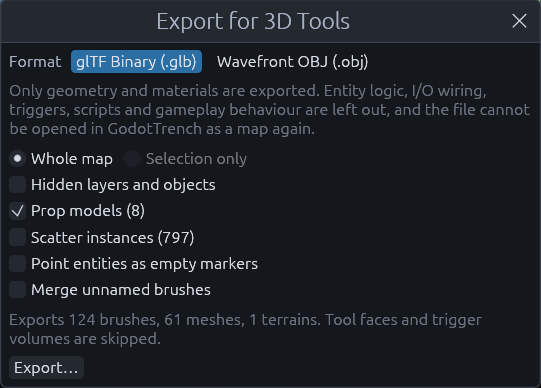
The Export for 3D Tools window opens. Tick what you want, see the options below. The numbers next to Prop models and Scatter instances tell you how many objects each adds. You can switch the format to OBJ at the top.
-
Save it
Click Export… and choose where the file goes. The export runs in the background with a progress window, so you can keep editing, and Cancel stops it without writing anything. When it is done the status bar says how many objects, materials and triangles went out.
-
Open it in Blender
Use File > Import > glTF 2.0 (.glb/.gltf) and pick the file. The defaults are right, the importer turns the model Z up on its own.
The file holds the map as it was when you clicked Export…. Unsaved changes are autosaved first, unless autosave is off in File > Preferences. If the status bar names a material the project has no image for, that one comes out untextured.
Options
| Option | Does |
|---|---|
| Whole map, Selection only | Everything, or only the selected objects, still inside their layers and groups |
| Hidden layers and objects | Also exports what is hidden in the views. Off, you get what you see |
| Prop models | The models that props and other point entities show, at their place, rotation and scale |
| Scatter instances | Every tree, rock and tuft of the scatter sets as its own object. Off by default, since thousands of them make a big file that is slow to open |
| Point entities as empty markers | An empty object named like the entity where each point entity without a model stands, handy for placing lights or cameras in Blender |
| Merge unnamed brushes | Brushes you have not renamed join into one object per layer, group or entity, which keeps Blender's outliner short. Named brushes stay separate |
What is exported
| In the map | In the file |
|---|---|
| Layers and groups | Empty parent objects with the same names, so the Outliner layout carries over |
| Brushes | One object each, named like in the Outliner, brush12 or the name you gave it |
| Brush entities such as doors and lifts | A parent object named after the entity holding its brushes, where they stand in the editor |
| Meshes, decals | One object each. Decals get blended, double sided materials |
| Terrain | One object. Each triangle takes the texture of its strongest painted layer, so painted blends look stepped |
| Prefab instances | The prefab's contents moved into place, under an object named after the instance |
| Materials | One per material with its albedo texture, plus the normal, roughness, metallic, ambient occlusion and emission maps it has. Cut out and see-through materials keep their alpha, pixel art stays sharp. Built-in dev colors come out as their grid textures |
The file leaves out what the Godot build does not draw: faces with tool textures (clip, skip, origin, sky, trigger, nodraw, hint), faces hidden against another brush, trigger and other volume entities, and layers set to Omit From Export. Lights, sounds, spawn points, the sky and fog are not exported either.
Only objects that go into the file hide each other's faces. So a pillar exported with Selection only keeps the bottom that rests on the floor, and a layer set to Omit From Export leaves no holes in its neighbors.
Units and axes
One meter in Godot is one meter in Blender. Map units are divided by the project's units per meter, 32 unless the map settings say otherwise. The file is Y up like Godot, which is what glTF expects. Each brush, mesh and terrain has its origin at the center of its bounds, and models keep the origin of the model file.
When to use OBJ
File > Export > Wavefront OBJ (.obj)… is for tools that cannot read glTF. It writes three things side by side, for
example level.obj, level.mtl with the materials, and a level_textures folder with copies of the textures. Keep
them together when you move them. In Blender, use File > Import > Wavefront (.obj).
OBJ has no parent objects and no way to share one mesh between copies, so every object is written flat in world space and each scatter instance is a full copy. With scatter instances ticked, the window warns once they add up to a million triangles and says how big the file gets. An OBJ export refuses more than 10 million triangles, a file of more than a gigabyte. Materials keep the albedo, normal, roughness and emission textures. Prefer glTF whenever the other tool reads it.
A .glb file holds at most 4 GB. glTF writes each model once however many scatter instances show it, so only a huge
map gets there, and the export then says so instead of writing a broken file.
Command line
trenchdot --export-glb <map> <out.glb> and --export-obj <map> <out.obj> export with the default options without
opening a window. The map's Godot project is found from its folder. See Command line.
MCP
map_file {op: export_glb, path} writes a .glb and map_file {op: export_obj, path} an .obj with its .mtl and
texture folder, from the open map as it is, saved or not. The options are flags: selection_only, hidden, scatter,
models (true unless set), markers and merge_brushes. The result lists objects, meshes, materials, images,
triangles, bytes and missing_textures. run_action refuses export_glb and export_obj, since the menu entries
open a file dialog.