Meshes
Unlike brushes, meshes can have dents, holes and bent faces, so use them for rocks, pipes, smooth arches and other shapes brushes cannot make.
Editing a mesh
Select the brushes you want to reshape and choose Mesh > Edit Mesh. It converts them to a mesh and starts editing straight away.
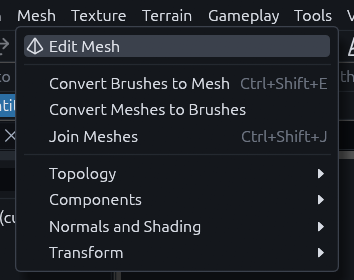
With a mesh selected, Tab does the same, and Tab again takes you back to objects. Tab on brushes opens the Vertex tool instead, so a stray key press never turns a brush into a mesh. The Mesh tool button in the toolbar starts editing without converting anything. Ctrl+Shift+E only converts, Ctrl+Shift+J joins meshes into one.
While you edit, the tool options bar at the top switches between Vertex, Edge and Face, and has buttons for the common operations.

Keys
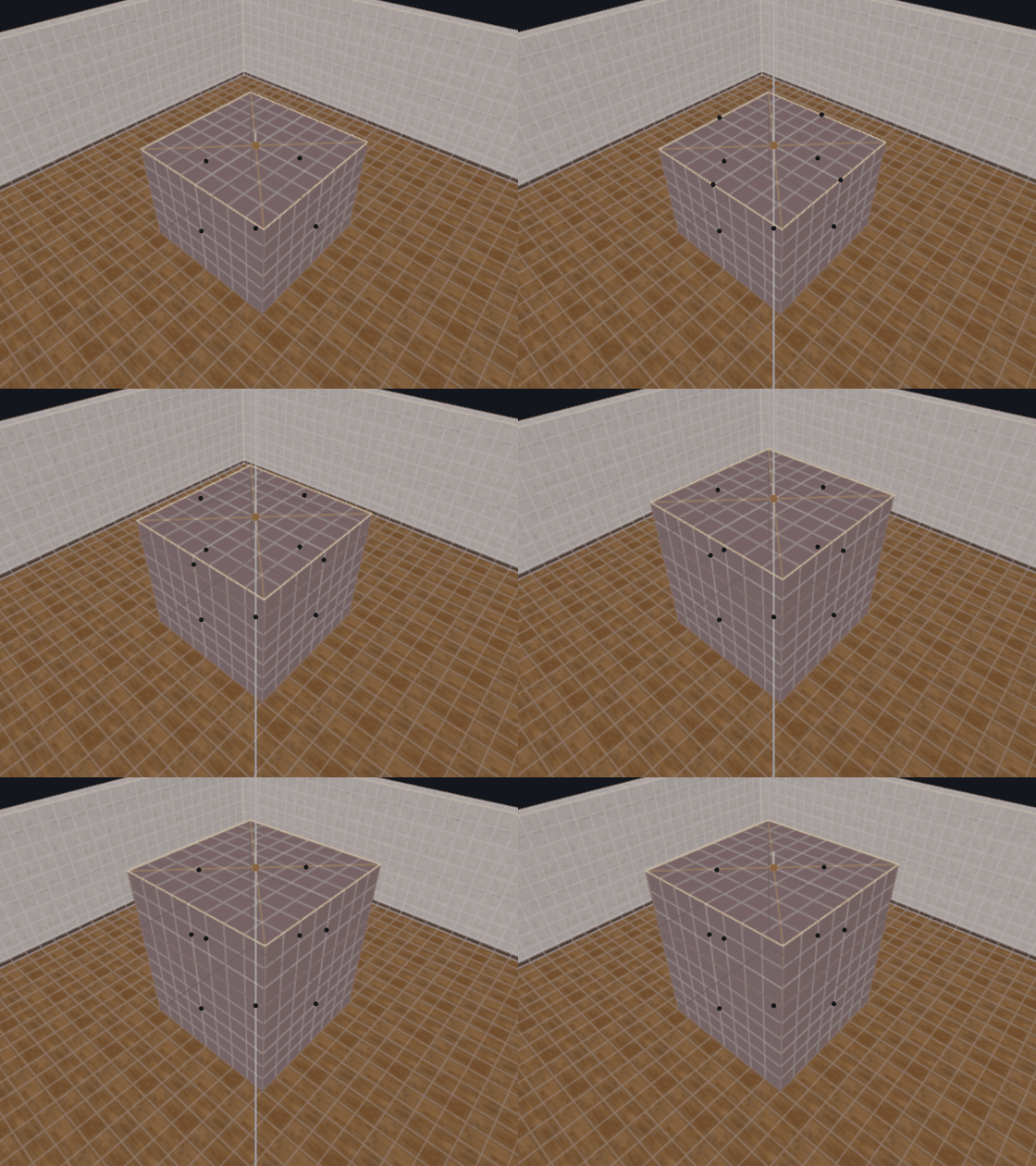
The keys follow Blender. For example, press 3, click the top face of a box and press E, then move the mouse up and click to extrude it:
| Key | Action |
|---|---|
| 1, 2, 3 | Work on vertices, edges or faces |
| A, Alt+A | Select all, select none |
| Alt+click, Ctrl+Alt+click | Select the edge loop through the clicked edge, or the ring across it |
| Ctrl+L | Select everything connected to the selection |
| G, R, S | Move, rotate, scale |
| E | Extrude new geometry out of the selection |
| I | Inset, a smaller face inside each selected face |
| Ctrl+B, Ctrl+Shift+B | Bevel edges or vertices, cutting the corner off |
| Ctrl+R | Loop cut, a new ring of edges across the mesh. The wheel or + and - set the number of cuts |
| K | Knife, click two points to cut along that line |
| M | Merge the selected vertices at their center |
| F | Fill, a new face across the selected vertices |
| X or Delete | Delete |
| Shift+D | Duplicate and move |
| P | Separate the selection into a new mesh |
| Alt+F | Flip normals, for faces that show from the wrong side |
While moving, rotating or scaling, press X, Y or Z to lock to that axis, or Shift with the letter to lock it out. Type a number for an exact amount. Click or Enter confirms, right click or Escape cancels. The hint line at the bottom of the view lists these as you go.
Gizmo
Double click an element to put a move, rotate and scale gizmo on it. It is the clean way to slide a vertex along one axis, and it works in the 2D views too. Escape hides it and keeps the selection.
The Mesh menu holds the rest, such as subdivide, triangulate, solidify, mirror and smooth shading.