Prefab library
The Prefabs tab at the bottom, next to Materials and Models, holds ready made pieces to paste into a map: stairs, doorways, pillars, small rooms and details. Think of the prefab collections TrenchBroom mappers copy from, only built into the editor.
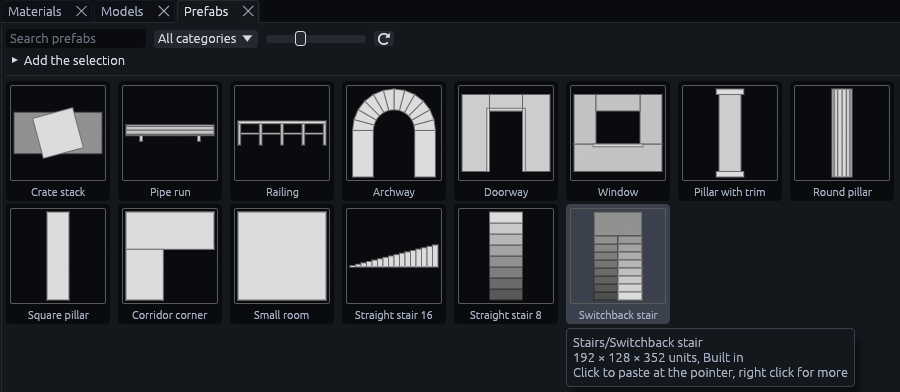
Each card draws its piece from the side that shows the most: from above for floor plans like a stair, from the front for walls like a doorway. Lighter means nearer.
Pasting a piece
-
Point at the spot
Hover the spot in a view where the piece should go, that sets the 3D cursor.
-
Click the card
Type in Search prefabs or pick a category to find it, then click it. The piece is pasted centered on that spot and snapped to the grid, like Ctrl+V.
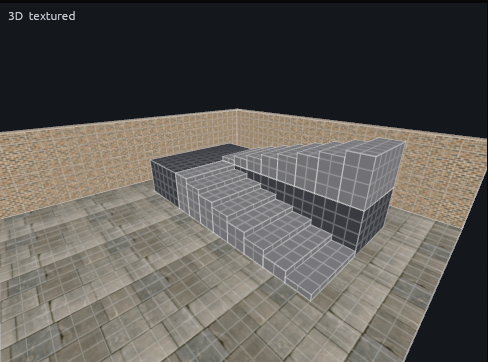
Only the spot on the floor plan follows the cursor. The height stays as the piece was saved, so on an upper floor lift it up afterwards.
The paste is a plain copy with no link back to the library, so reshape or retexture it freely. The built-in pieces use
the dev/ materials every project has, retexture them from the Materials tab.
Right click a card for Paste and Copy. Copy puts the piece on the clipboard, to paste into another map or share as text.
To cover a whole area with pieces picked at random, use Random fill.
Tip
A piece is plain map content once pasted. For something that should stay in sync everywhere it is used, like a window frame repeated across a building, make a prefab instance instead.
Your own pieces
-
Select the objects
Select what should become the piece, with a Godot project open.
-
Add the selection
Open Add the selection at the top of the Prefabs tab, give the piece a name and a category, and click Add.

-
Find the new card
It shows up first, with a blue frame. Right click it for Open to edit, which opens the piece as a map, and Show in File Manager. Built-in pieces cannot be edited.
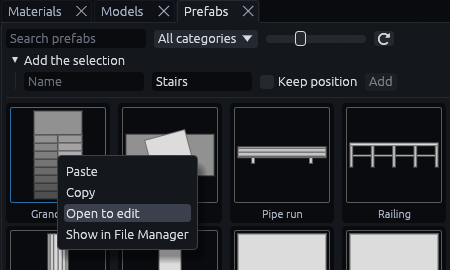
The piece is saved as a .tdm in res://prefab_library/<category>/, moved so the bottom center of the selection sits
on the origin. Tick Keep position to leave it where it is instead, for a piece you built around the map's origin on
purpose, like the pieces of a random fill kit.
Every .tdm in that folder is a piece. Save maps there yourself with File > Save As… and they show up as cards right
away. For files you copied in by hand, or a folder of pieces shared between projects, press the ⟳ button.
Pasting from TrenchBroom
TrenchDot also pastes what TrenchBroom puts on the clipboard. Copy brushes in TrenchBroom, or from a TrenchBroom prefab collection on the web, and press Ctrl+V in a map. Groups come across as groups, entities as entities, and the axes are turned the same way as when importing a .map. Texture names are kept, other games' tool textures become the project's.
MCP
The prefab_library tool lists pieces (op: list), pastes one by its category/name (op: paste, with origin or
offset), returns its clipboard text (op: copy), and adds objects to the project's library (op: add, the selection
unless ids are given). run_action with paste accepts TrenchBroom clipboard text as well as TrenchDot's.