Shortcuts
These are the default keys, the TrenchBroom preset.
Want other keys? Help > Keyboard Shortcuts… lists every binding. Type in the filter to find one, press Set and then the new shortcut. Preset at the top of that window, or File > Preferences > Keymap preset, switches to Hammer or Blender, see Other presets.
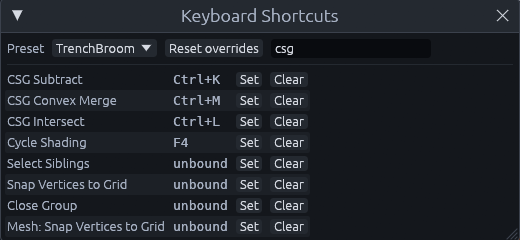
Shortcuts wait while you type in a field or a menu is open. While the pointer is over a floating window, such as the Shape Generator, only save, undo and redo work, so a key meant for the window never deletes or changes your map.
Tools
Press a tool's key again to go back to Select. Esc cancels a drag or stroke, otherwise it returns to Select, and in Select it clears the selection.
| Key | Tool |
|---|---|
| Q | Select, draw brushes and move things |
| C | Clip, to cut brushes along a plane |
| V | Vertex, to drag the corners of brushes |
| R | Rotate |
| T | Scale |
| Tab | Edit the selection where it stands: meshes in the Mesh tool, brushes in the Vertex tool. It never converts a brush, Mesh > Edit Mesh does that |
| Shift+T | Texture, to align textures on faces |
| P | Paint, to paint vertex colors onto faces |
| G | Sculpt terrain and displacements |
| Shift+G | Blend terrain layers |
| B | Scatter |
| Shift+E | Volume, to drag out a trigger volume |
| Shift+P | Path, to place a chain of path_corner entities |
| M | Measure distances |
Mouse in the views
| Input | Result |
|---|---|
| Drag off the selection | Draw a brush |
| Drag the selection | Move. Ctrl copies, Shift locks the axis, Alt moves vertically in 3D |
| Click, double click | Select, select the whole group |
| Click again soon at the same spot, or Alt+click (2D) | Select the next object under the cursor, such as a wall under its ceiling in the Top view |
| Ctrl+click | Add to or remove from the selection, in the views and the Outliner |
| Shift+click in the Outliner | Select the rows from the last clicked one |
| Shift+click, Ctrl+Shift+click | Select one face, add or remove a face |
| Shift+drag a selected face (3D) | Push or pull it |
| Ctrl+Shift+drag a selected face (3D) | Extrude a new brush |
| Right drag (3D) | Look around. Hold it and use WASD to fly, Q and E to go down and up |
| Middle drag | Pan |
| Alt+left drag (3D) | Orbit. In the Select tool a drag that starts on the selection or its gizmo moves it vertically instead |
| Ctrl+wheel (Sculpt, Blend, Paint, Scatter) | Resize the brush |
Editing
| Key | Action |
|---|---|
| Ctrl+Z, Ctrl+Shift+Z or Ctrl+Y | Undo, redo |
| Ctrl+X, Ctrl+C, Ctrl+V | Cut, copy, paste under the mouse |
| Ctrl+D, Ctrl+Shift+D | Duplicate, duplicate linked |
| F2 | Rename the selected object in the Outliner |
| Ctrl+R | Repeat the last rotate, flip, nudge or duplicate. In mesh editing it makes a loop cut |
| Delete or Backspace | Delete |
| Ctrl+A, Esc, Ctrl+I | Select all, none, inverse |
| Ctrl+T, Ctrl+Shift+T | Use the selected brushes as a stencil and select what they touch, or what lies inside them. The stencil brushes are deleted |
| Ctrl+G, Ctrl+Shift+G | Group, ungroup |
| Ctrl+H, Ctrl+J, Ctrl+Shift+H | Hide the selection, isolate it by hiding everything else, show all |
| Arrows, Page Up, Page Down | Nudge by one grid step |
Brushes, meshes and textures
| Key | Action |
|---|---|
| Ctrl+K, Ctrl+M, Ctrl+L | CSG subtract (carve the selection out of what it touches), convex merge, intersect |
| Ctrl+Shift+K | Hollow, turn a solid brush into a room with walls |
| Ctrl+Shift+B | Shape generator, for arches, cylinders, stairs and other ready-made shapes |
| Ctrl+Shift+E, Ctrl+Shift+J | Convert brushes to mesh, join meshes |
| Ctrl+Shift+W | Move brushes to world, taking them out of their entity so they become plain level geometry |
| Ctrl+Shift+U | Toggle UV lock, which keeps textures attached to a brush while it moves |
| Alt+H | Hotspot fit, which fits selected faces to the best matching rectangle of a trim sheet |
View and files
| Key | Action |
|---|---|
| F or Ctrl+U | Frame the selection, or the whole map |
[ and ], or - and = |
Halve or double the grid |
| F4, F3 | Cycle shading (textured, flat, lit, wireframe), toggle Lit Preview |
| Shift+Space | Maximize the view under the pointer |
| Ctrl+Shift+1 to 9, Ctrl+1 to 9 | Store, recall camera bookmarks |
| Ctrl+=, Ctrl+-, Ctrl+0 | Interface scale up, down, reset |
| F1 | Open the manual at the tool, panel tab, menu entry or Inspector section under the pointer, anywhere else the command palette |
| Ctrl+click a tool in the toolbar, Cmd+click on macOS | Open its page in the manual |
| Ctrl+Shift+P | Command palette |
| Ctrl+N, Ctrl+O | New map, open map |
| Ctrl+S, Ctrl+Shift+S | Save, save as |
| Ctrl+Shift+N, Ctrl+Tab, Ctrl+W | New tab, next tab, close tab |
| F5 | Run the Godot project |
Note
F2 used to cycle the shading. It now renames, like in Godot, Blender and most file managers, and shading moved to F4. A binding you set yourself in the shortcuts window stays as it was.
Other presets
A preset only changes the keys below, everything else stays as above. Your own bindings sit on top of any preset, Reset overrides in the shortcuts window clears them.
| Key | Hammer preset |
|---|---|
| Shift+S, Shift+X, Shift+V, Shift+A | Select, clip, vertex, texture tool |
| H, Ctrl+H, U | Hide, isolate, show all |
| Ctrl+W | Move brushes to world |
| Ctrl+M | Shape generator |
| Ctrl+L | Rotate 90° around the vertical axis |
| Ctrl+Shift+M, Ctrl+Shift+L | CSG convex merge, intersect |
| Ctrl+F4 | Close tab |
| Key | Blender preset |
|---|---|
| A, Alt+A | Select all, none |
| X | Delete |
| Shift+D, Alt+D | Duplicate, duplicate linked |
| S | Scale tool |
| H, Alt+H, / | Hide, show all, isolate |
| Ctrl+J | Join meshes |
| Z | Cycle shading |
| Shift+A | Shape generator |
| F3 | Command palette |
| F4 | Lit Preview |
| Alt+Shift+H | Hotspot fit |