Saving and recovery
Press Ctrl+S to save, or Ctrl+Shift+S for Save As…. File dialogs start in the folder of the current map, or in the
Godot project for a map you never saved, since the addon loads maps by their res:// path. File > Maps in Project
lists every map in the project if you just want to open one quickly.
Backups and autosave
The editor keeps two kinds of spare copies next to your map:
| File | Written |
|---|---|
<map>.tdm.bak |
On every save, a copy of the previous version. Rename it to .tdm to go back one save |
<map>.tdm.autosave |
Every three minutes, for every tab with unsaved changes |
To change how often it autosaves, go to File > Preferences and set Autosave (minutes, 0 = off).

Autosaves use an extension Godot does not import, so a half finished map never shows up in your game. Saving the map deletes its autosave.
Recovering a map
If the editor closed before you saved, open the autosave:
- Choose File > Open Map….
- Pick the Autosave (recover a map) file type and open the
.tdm.autosavefile. The status bar should say it recovered the map from its autosave. - Save. This writes the real
.tdmagain.
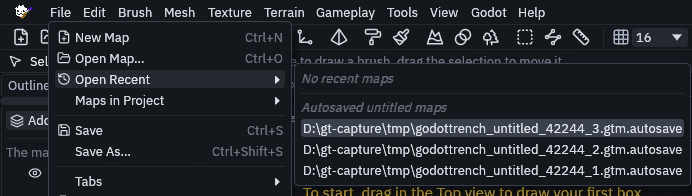
Maps you never saved autosave to a temporary file instead. You find those under File > Open Recent, below Autosaved untitled maps.
Damaged files
A map file damaged on disk still opens. The editor reads every intact part, puts objects whose layer, group or entity
was lost into a layer named Recovered, and says in the status bar what could not be read. Saving keeps the damaged
original as <map>.tdm.bak, so you can still restore it from version control.