Sea island 2: sculpting
Sculpting pushes the generated ground into the shapes you want.
-
Pick the Sculpt tool
Press Escape first, since the sea from the last part is still selected and Sculpt does nothing then. It works on the selected terrain, or on every terrain when nothing is selected. Then press G, or click the Sculpt button in the toolbar.

-
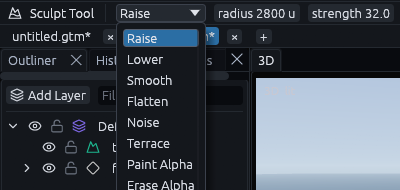
Find its settings
Mode, radius and strength sit in the tool options bar right under the toolbar, at the top left. Hold Ctrl while you drag to smooth, whatever the mode.
-
Keep an eye on the height
The status bar at the bottom right shows the point under the pointer, and its middle number is the height. Handy to judge how far you have raised or lowered a spot.

Hills
-
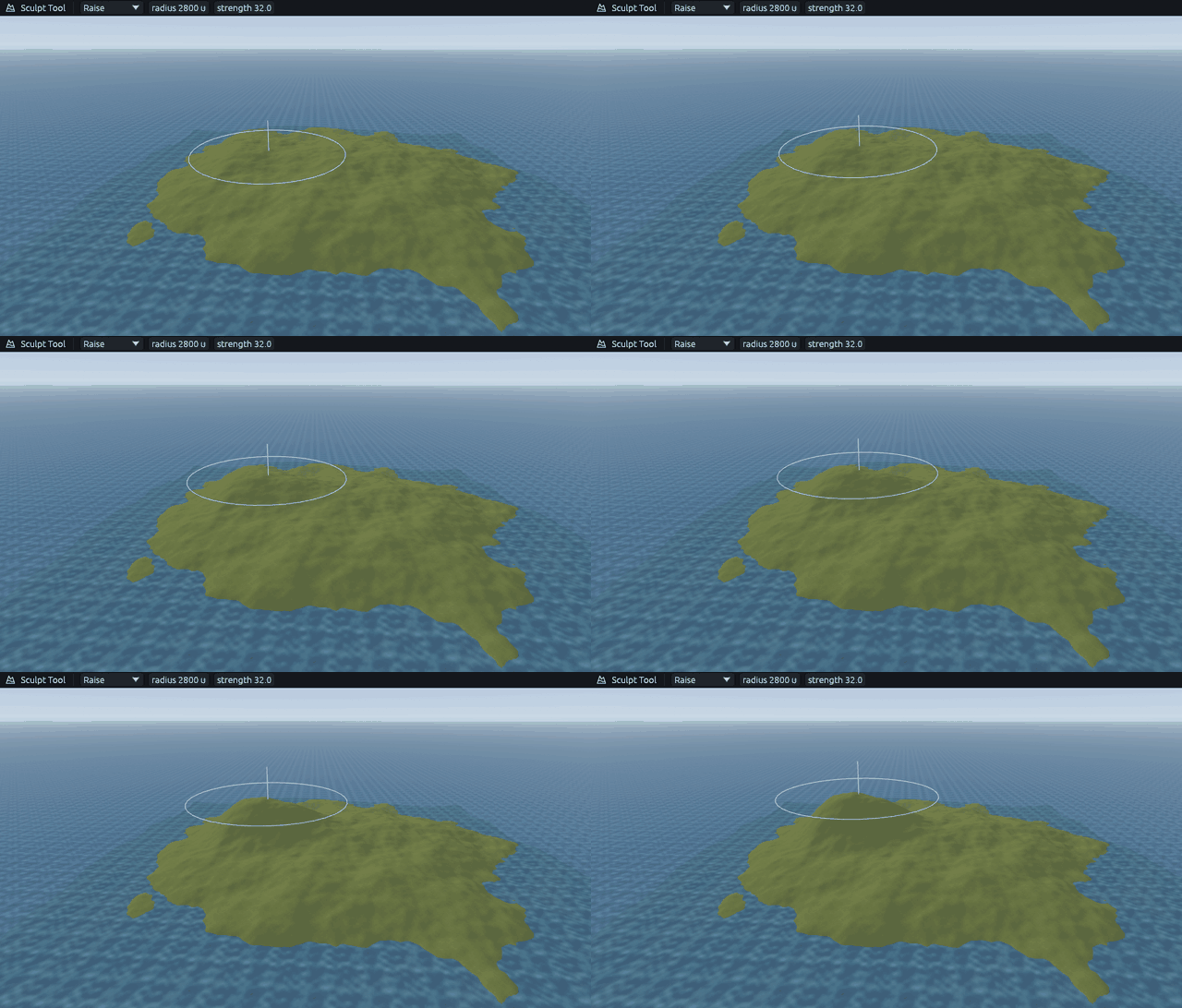
Raise, radius 2800, strength 32. Hold the mouse button down west of the middle for about four seconds, until the status bar says the hill is about 1500 units high.
-
Radius 1300 on the same spot for a steeper top. A smaller brush lifts a narrower area, so the top gets pointier.
- Radius 1900 for a lower second hill to the south east.
Cliffs
- Raise, radius 1800. Drag along the north east coast, a little inland, for a headland. Then Smooth the whole island once with a very large brush to take the lumps out.
- Lower, radius 1000. Drag through the sea in front of that coast to make it deeper, so the cliff drops into deep water instead of a shallow shelf.
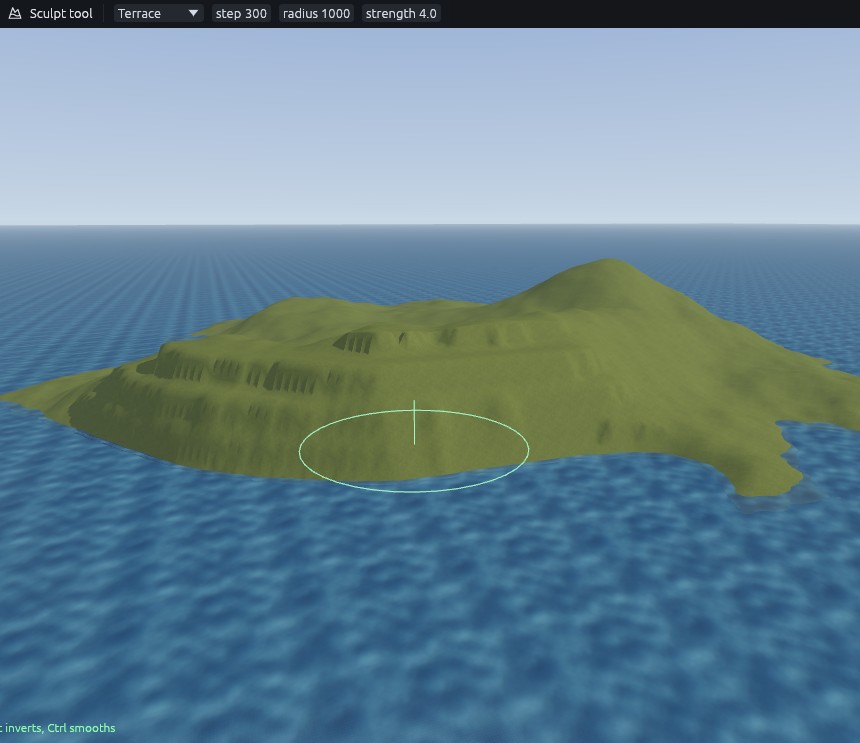
- Terrace, step 300, radius 1000. Terrace snaps heights to steps of the given size. Drag along the coastline so it breaks into shelves and steep faces, then go over it once with a light Smooth.
Beach
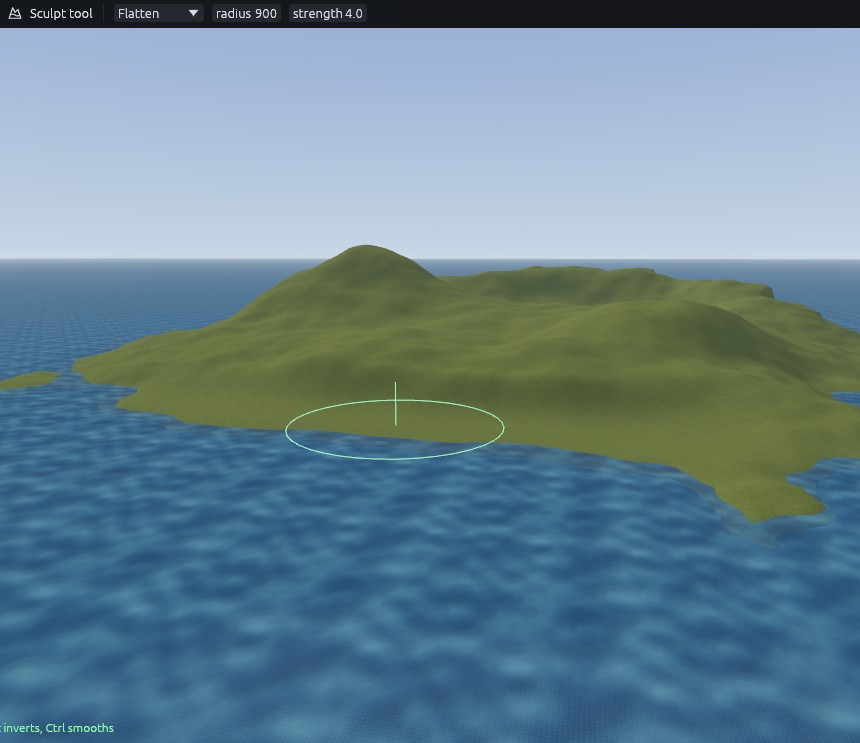
- Flatten, radius 900. Flatten holds the height the stroke starts at, so start right at the waterline on the south shore and drag along the coast.
- Smooth with a slightly larger brush, so the beach runs into the land without a step.
Next: Sea island 3: painting.