Organizing a map
Once a map gets bigger you want to sort it into parts, find things again and keep pieces you reuse in one place. Most of that starts in the Outliner, the panel on the left.
Layers
The Outliner shows the map as a tree of layers, groups and objects. Layers let you split a map into parts, for example one building per layer, so you can hide or lock a part while you work on the rest.
Click Add Layer at the top of the Outliner to make a new one, it becomes the current layer right away. New objects go into the current layer, the one marked (current), and clicking a layer makes it current. The eye in front of a row hides it, the lock stops it from being selected or edited.
Hover a row to see its materials, size and bounds. The object is outlined in every view at the same time, so you can
see which wall brush7 is.
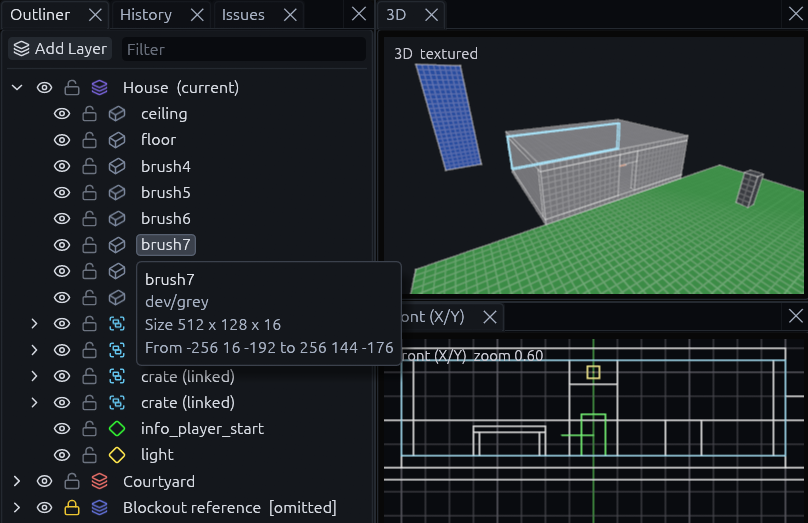
Brushes and meshes are listed by kind and id, such as brush12 or mesh40, so the walls a Hollow or a Subtract leaves
behind can be told apart. The id stays the same when the object moves and across saves.
Naming things
Select an object and press F2, or right click it in the Outliner or a view and pick Rename. The row turns into a text field. Enter keeps the name, Escape cancels, and an empty name brings back the default one.
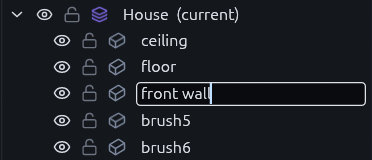
Names are saved with the map. Entities keep their targetname apart from this name, so renaming never changes what an
output reaches. The pieces a Clip, a CSG operation or a conversion leaves behind keep the name, and naming an object
inside a linked group names it in every copy.
(Layers, groups and scatter sets always keep a name, so for them an empty one changes nothing. Renaming a scatter set also renames the layer the Scatter tool made for it.)
Picking objects in the Outliner
Ctrl+click a row to add it to the selection or take it out. Shift+click selects every row between the last one you clicked and this one, and Ctrl+Shift+click adds that range to what is already selected. The Outliner is often the easier place to pick objects that hide behind others in the views.
Keeping a layer out of Godot
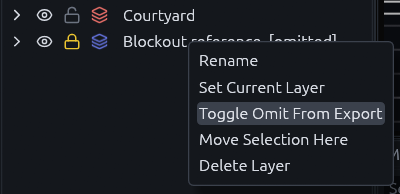
For reference geometry that should never reach the game, right click its layer and pick Toggle Omit From Export. The layer then shows [omitted] after its name. Hiding is not enough, Godot still builds hidden objects.
Groups
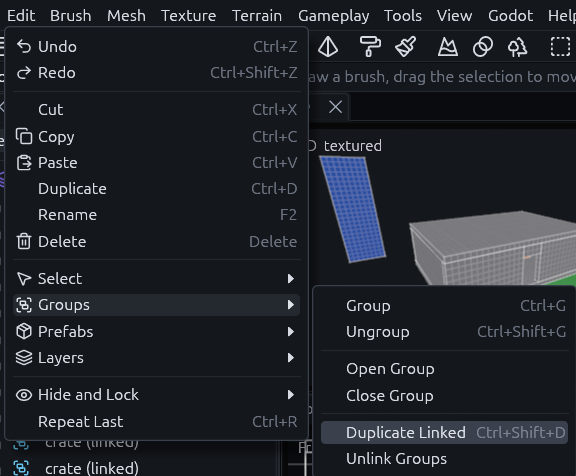
A group keeps objects together so they select and move as one, like the brushes of a table. Find everything about groups under Edit > Groups.
| Input | Result |
|---|---|
| Ctrl+G, Ctrl+Shift+G | Group the selection, ungroup it |
| Click | Select the object inside the group |
| Double click | Select the whole group |
Duplicate Linked (Ctrl+Shift+D) makes a copy that stays in sync with its original, so fixing one window frame fixes all of them. Linked copies show (linked) in the Outliner, and a click on one selects the whole group, since its copies are edited as one. Edit > Groups > Unlink Groups breaks the link when one copy has to differ.
Prefabs
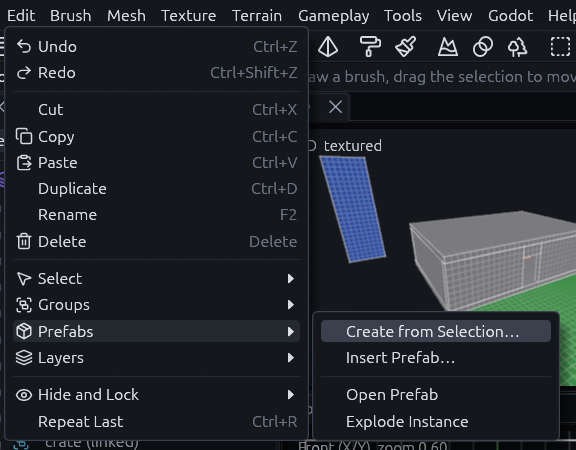
For pieces you reuse across maps, select them and choose Edit > Prefabs > Create from Selection…. That saves the
selection as its own .tdm and puts an instance in its place. Every instance updates when the prefab file changes.
Note
Save the map once before you create a prefab. Prefab paths are stored relative to the map, so the editor refuses until the map has a file.
For pieces you paste once and then shape freely, use the prefab library instead.
Placing a prefab twice gives two entities the same targetname. An instance's fixup solves that: with a fixup of p1,
every name inside it gets that prefix, so door becomes p1-door and each copy keeps its wiring apart. The map file
and the Godot build know the fixup, but the editor has no field to set it yet.
Cordon
A cordon shrinks the editor down to one part of a big map.
- Select what you want to work on.
-
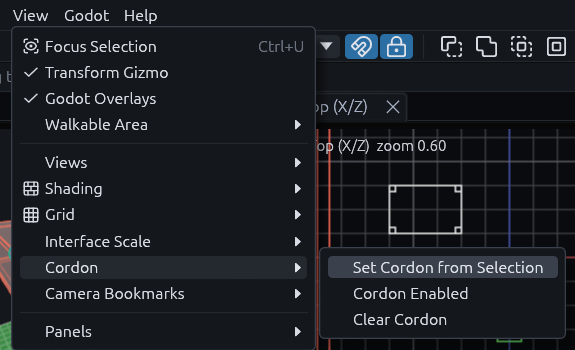
Choose View > Cordon > Set Cordon from Selection, or click Cordon in the Inspector.
-
Everything that does not touch the yellow box around your selection is now hidden and cannot be selected, and the status bar says cordon.
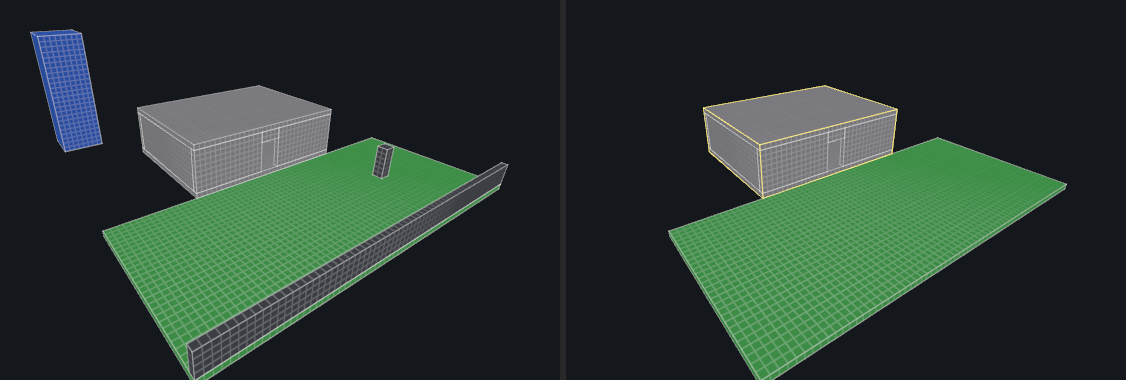
View > Cordon > Cordon Enabled switches it off and on again, and Clear Cordon removes it. The cordon is saved with the map.
It only changes what the editor shows, Godot still builds the whole map. To hand one area to another tool, File > Export > .map, cordon only… writes just the objects inside it.
Issues
The Issues panel, the tab beside the Outliner and History, checks the map while you work. It lists problems that would break or look wrong in Godot, such as brushes with no volume, faces with no material, or outputs aimed at a targetname nothing has.
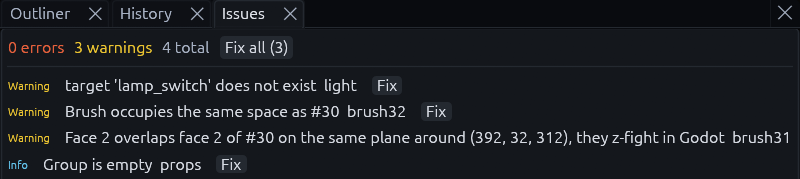
Click an issue to select and frame the object. Many have a Fix button, and Fix all in the header fixes every one it can.
A warning that a face overlaps a face of another brush on the same plane means the two will flicker in Godot. Move one face off the plane or trim the overlap.
A warning that a model does not exist means a prop's model names a file that is not there, so the prop builds with no
mesh. When a file of the same name with another extension exists, chair.gltf for chair.glb, the warning names it.
A warning that something runs GDScript from the map means the map carries code of its own, which runs as soon as the
scene plays in Godot. You get one for each logic_script with a source or expression, each output or logic_call
that can hand one code, such as an output that sends source to it, and each prefab that holds any of these. Read them
before you play a map someone else made.
Warnings that start with "Godot" come from the last build in Godot, after a save or Build in Godot: the classes it built without their definition, and the other warnings of that build. See Entities that do nothing.
History
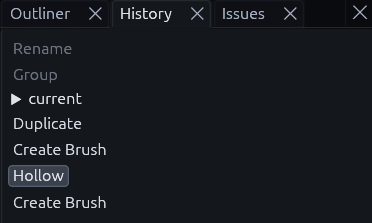
The History panel lists every edit, newest at the top. Click an older entry to undo back to it, that entry included. Undone edits stay dimmed above current, click one to redo up to it.
MCP
An agent or script driving the editor over the MCP server runs the same checks as the Issues panel with
the validate_map tool, which names them by code, such as coplanar_faces and missing_model. The
run_action action insert_prefab takes a fixup, so an agent can give an instance its fixup when it places it.