Scatter
The Scatter tool (B) paints trees, rocks and grass onto surfaces you choose, so you can cover a hillside in seconds instead of placing every model by hand. The sea island tutorial walks through a full setup.
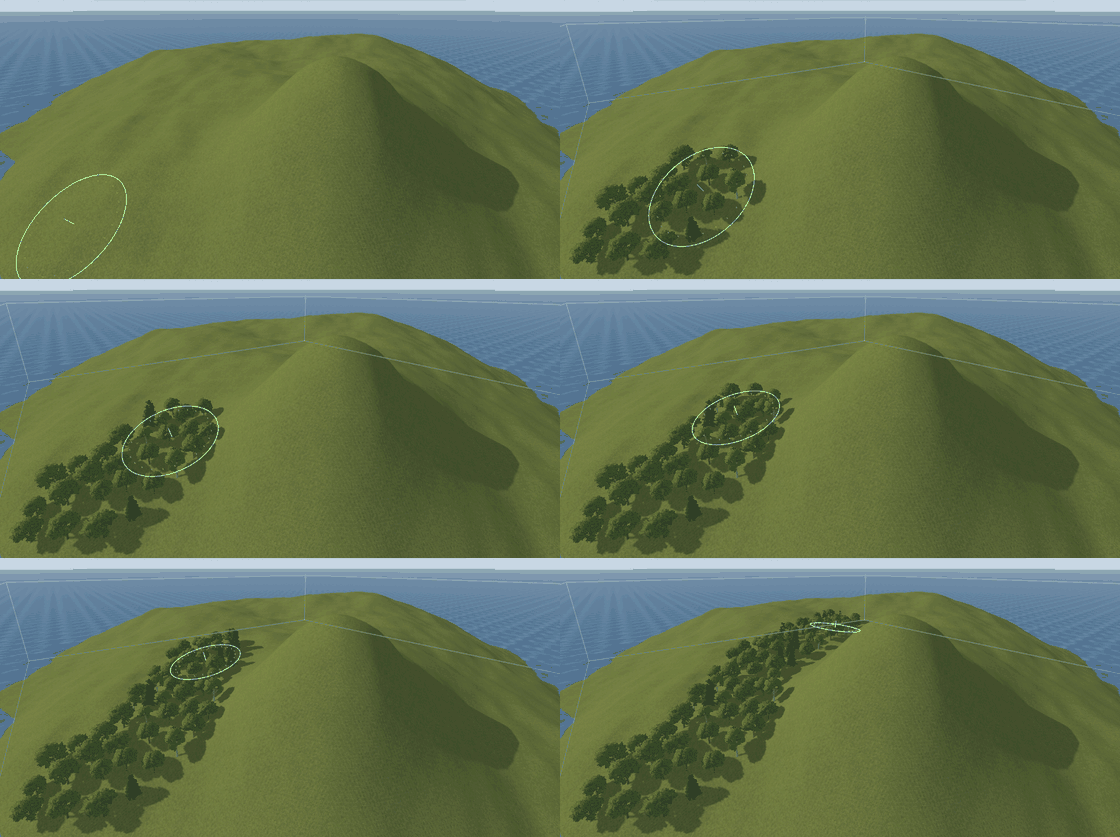
Scatter sets
Everything you scatter lives in a scatter set on its own layer, for example one set for trees and one for grass. Press B and the Scatter panel opens on the right, with a card for every model in the active set.
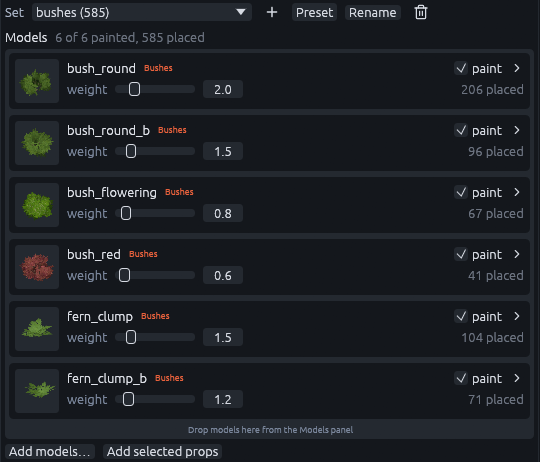
| To | Do this |
|---|---|
| Start an empty set | + next to the set menu |
| Start from a preset | Preset, then pick one of the ten built-in sets |
| Add models | Drag them in from the Models panel, or Add models…. Add selected props takes the models of the selected entities |
| Stop painting one model | Untick paint on its card. What it already placed stays |
| Tune a model | Click the arrow at the right of its card |
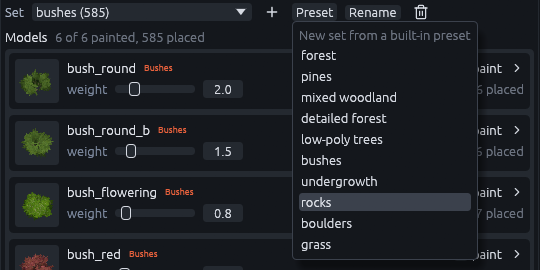
The rocks, boulders, grass, undergrowth and low-poly trees presets use Blockbench models built into the editor.
Picking one adds the models it needs to res://trenchdot/nature, offline. The forest, pines, mixed woodland,
detailed forest and bushes presets use the glTF trees and bushes of the nature pack, a download of about 23 MB. In a
project without it, picking one of those opens Godot > Add Content to Project… on the nature models instead of
making a set whose models are missing. Terrain > Scatter > Install Nature Models…, or Install Nature Models… at
the bottom of the panel, opens it too. Files already in the project are never overwritten.
Model cards
Open a card with its arrow to tune that one model.
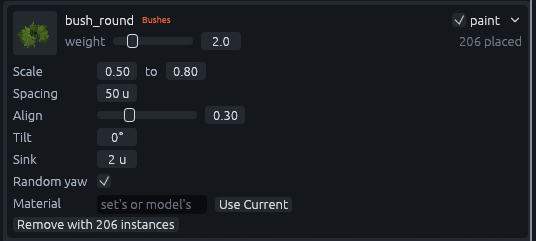
| Card setting | What it does |
|---|---|
| weight | How often this model is picked compared to the others in the set |
| Scale | A random size between the two values |
| Spacing | The smallest distance in map units to any other instance |
| Align | 0 stands the model upright, 1 tilts it to follow the surface |
| Tilt | The largest random lean in degrees |
| Sink | How far the model is pushed into the ground, to hide the bottom of a trunk or rock |
| Random yaw | Turns each instance to a random direction |
| Material | Drawn instead of the model's own materials. Left empty, the set's material applies, if it has one |
Targets
A set only lands on its targets, so a forest painted on a terrain never covers the house on it. Alt+click in a view, or click the eyedropper at the right of Targets and then click in a view, to add or remove a target. A set without targets takes whatever its first stroke lands on. Another set can be a target too, which is how grass grows on boulders.

Ticking Follow cursor ignores the targets and paints on any surface or scattered prop under the brush.
Painting
The quick settings sit in the tool options bar at the top left: the set, Paint or Erase, radius, density, max slope, Follow cursor, the eyedropper and Fill. Scatter Panel brings the panel back if you closed it.

| Input | Action |
|---|---|
| Left drag | Paint |
| Shift+left drag | Erase, from the active set only |
| Ctrl+wheel | Resize the brush |
| Fill Targets | Cover every target in one go, within the slope and height limits |
The Brush section of the panel holds the rest.
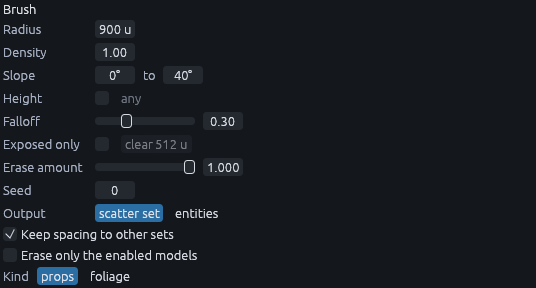
Density is how many placements the brush tries per 64 by 64 units, and each model's spacing limits how many actually fit. Exposed only skips points with geometry above them, which keeps grass out from under balconies and roofs. Keep spacing to other sets, on by default, stops a bush growing through another set's trunk.
In Godot
A set's Kind decides what Godot builds.
| Kind | Built as |
|---|---|
| props | MultiMeshes with collision and shadows. Models whose scenes carry scripts are instanced one by one so the scripts run |
| foliage | MultiMeshes without collision or shadows, hidden beyond 2400 units by default. Meant for grass and small plants |
Select the set in the Outliner and its Collision row in the Inspector picks the shape each instance collides with. New props sets start on convex and foliage sets on none.
| Collision | Shape per instance |
|---|---|
| none | No collision |
| box | One box around the instance |
| convex | One convex hull around the instance |
| decomposition | Several convex hulls that follow concave models, such as an arch, slower to build |
| trimesh | Every face of the model, exact but the most expensive |
When you need to edit single props, To Entities at the bottom of the Scatter panel, or Terrain > Scatter > Scatter
Sets to Entities for the selected sets, replaces a set with one prop_model entity per instance.
