Button opens a door
A button on the wall that slides a door open when the player presses it. It is the smallest useful bit of entity I/O:
the button fires an output called pressed, and a link turns that into a call of the door's open input.
Tip
If outputs, inputs and targetname are new to you, read How entity I/O works first. It
only takes a few minutes and this page builds on it.
Wire it
func_door and func_button come with the Gameplay entities pack. If your project does not have it yet, use
Gameplay > Install Gameplay Entities, or Install Gameplay Entities in the Set up this project window
(Godot > Install or Update Addon…).
-
Make the door
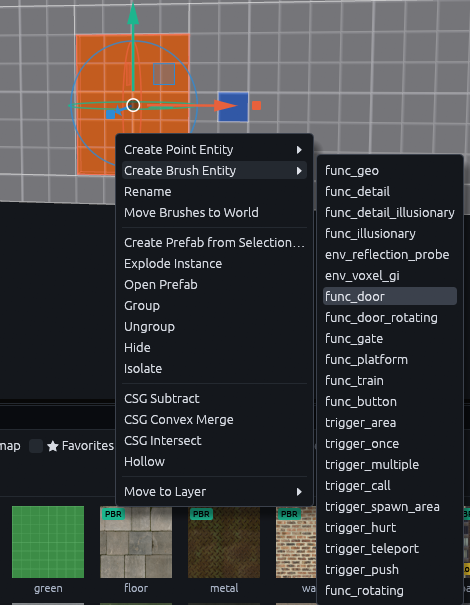
Draw a door sized brush in a doorway, Getting started shows how to cut one. Right click the brush and pick Create Brush Entity > func_door.
-
Name it
In the Inspector on the right, type
main_doorintotargetname. The name is how other entities find the door. Leavetravelat0 64 0, so the door slides up 64 units (2 m) when it opens.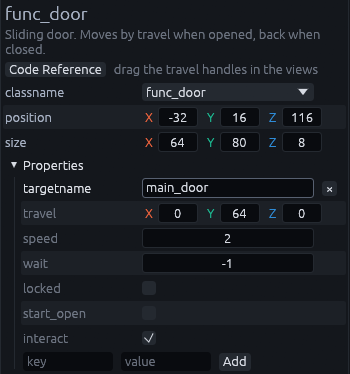
-
Make the button
Draw a small brush on the wall next to the door and turn it into a
func_buttonthe same way. -
Select both
Click the button, then Ctrl+click the door, in a view or in the Outliner on the left. Walls in the way? Type
funcinto the Filter box at the top of the Outliner, then only these two are listed.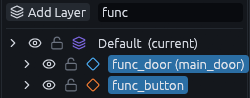
-
Link them
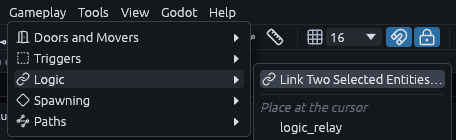
Go to Gameplay > Logic > Link Two Selected Entities…, or press Link… at the top of the Inspector.
The entity that fires has to be on the left, here that is the button. The dialog puts the one you made first on the left, which is the door, so press the small swap button between the two names. Pick
pressedunder When andopenunder call, then hit Link.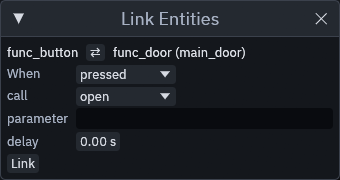
The status bar at the bottom left should now say pressed > main_door.open. Read it as "when pressed, call open on
main_door".

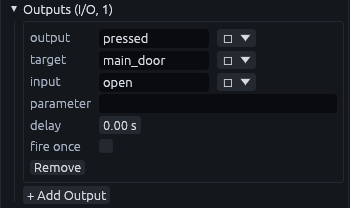
Select the button on its own and you find the link under Outputs in its Inspector, where you can change or remove it later.
Tip
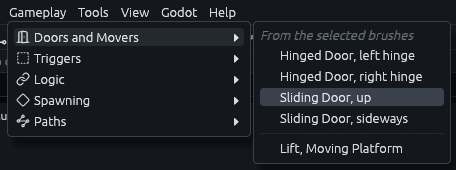
Gameplay > Doors and Movers, also in the Inspector's Gameplay section, turns the selected brush into a
hinged or sliding door in one click. It names the door, sets how it opens and puts a trigger_multiple in front of
it that opens the door when the player walks up. Delete that trigger if only the button should open the door.
Let the player press it
The addon has no interaction system of its own, since every game handles "use" differently. Doors and buttons have a
use(activator) method and your player script calls it. The demo player does that on E: it casts a ray from the
camera and calls use on the first thing it hits that has one
(godot/demo/player.gd):
func use_target() -> void:
    var from := camera.global_position
    var query := PhysicsRayQueryParameters3D.create(from, from - camera.global_basis.z * use_distance)
    query.exclude = [get_rid()]
    query.collide_with_areas = false
    var hit := get_world_3d().direct_space_state.intersect_ray(query)
    var node: Node = hit.get("collider")
    while node:
        if node.has_method(&"use"):
            node.call(&"use", self)
            return
        node = node.get_parent()
The player passes itself as the activator, so pressed(activator) carries the player along. Later outputs in the
chain can target !activator to act on whoever pressed the button.
Variations
| You want | What to change |
|---|---|
| Door only opens from the button | Untick the door's interact. Otherwise pressing E on the door opens it too |
| Door closes by itself | Set the door's wait to the seconds it stays open. The default, -1, keeps it open |
| Locked door | Tick locked. The door ignores open and use and fires locked_use instead, until an output calls its unlock input, for example from a key pickup |
| One button, several doors | Name the doors gate_1, gate_2 and so on and target gate_*. A trailing * matches every name that starts with gate_ |
| Swinging door | Use func_door_rotating instead and drag its hinge handle in the view to where the hinge should be |
The same wiring in code
Rather connect things in GDScript than in the editor? This does the same as the link above:
# pressed(activator) > main_door.open
button.pressed.connect(func(activator):
    for door in TrenchDotIO.find_targets(button, "main_door", activator):
        TrenchDotIO.invoke(door, &"open", "", activator))
Connecting pressed straight to door.open fails, because pressed passes one argument and open() takes none.
invoke fits the arguments to the method, the same way map links do.